Join and leave channels
Join a channel
Channels are either public or private.
- Public channels are identified with a Globe
 icon. Anyone on the team can join a public channel.
 - Private channels are typically used for sensitive topics, and are identified with a Lock
 icon. You must be invited to private channels by another channel member.
To join a public channel:
- Web/Desktop
- Mobile
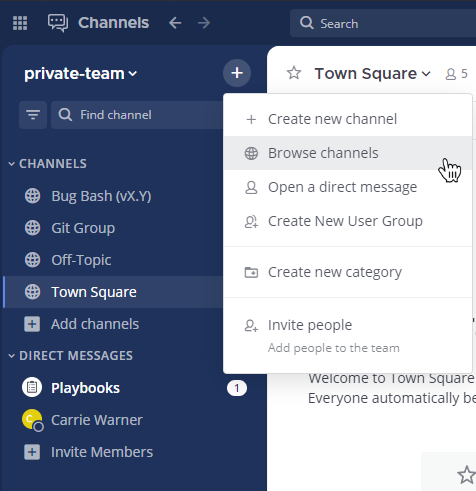
- Select the Add channels button in the channel sidebar, then select Browse Channels.
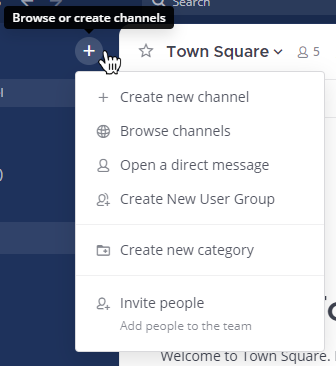
Alternatively, you can select
at the top of the channel sidebar, then select Browse Channels.
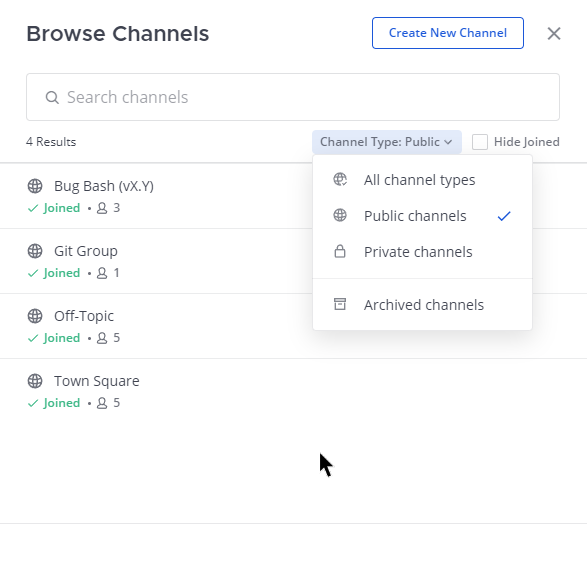
- Select Join next to the public channel you want to join.
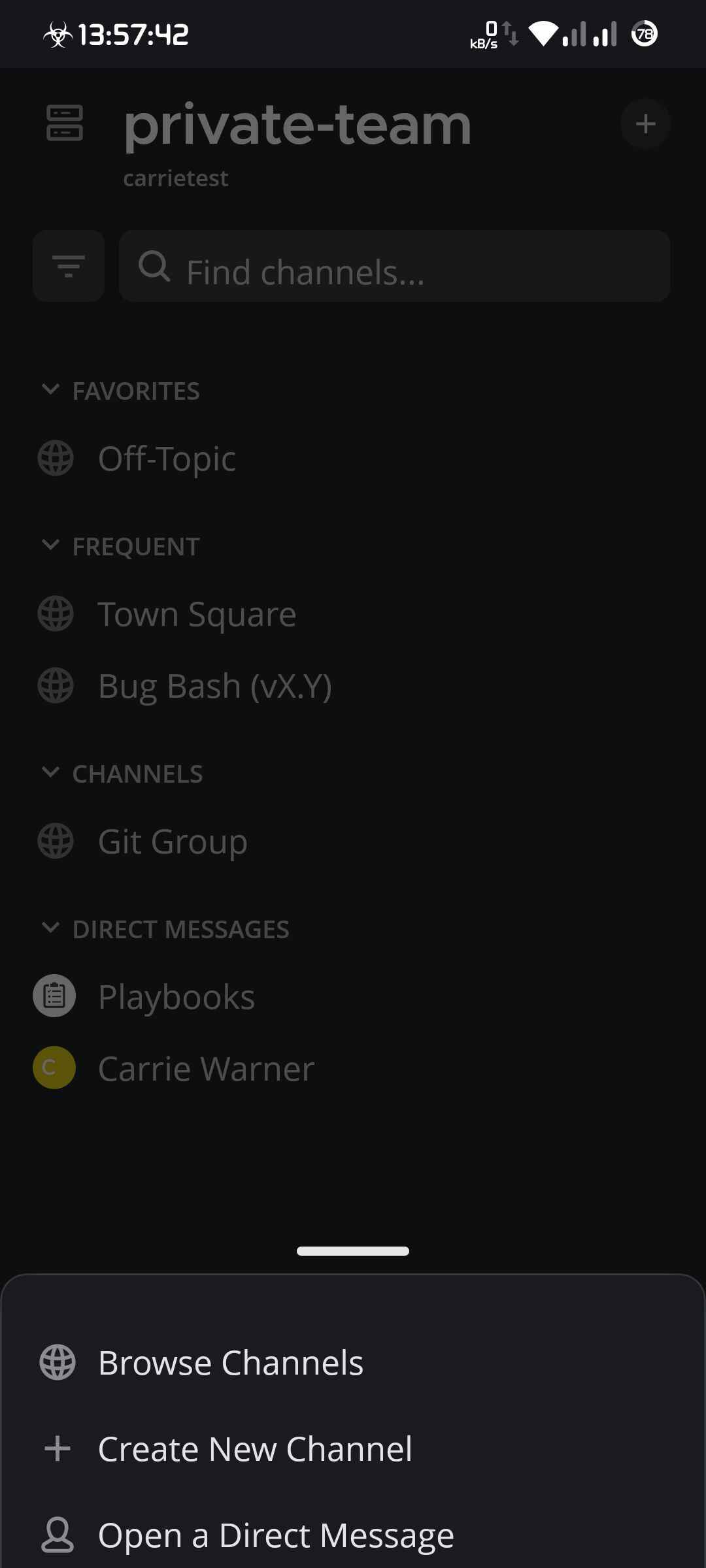
- Tap located in the top right corner the app.
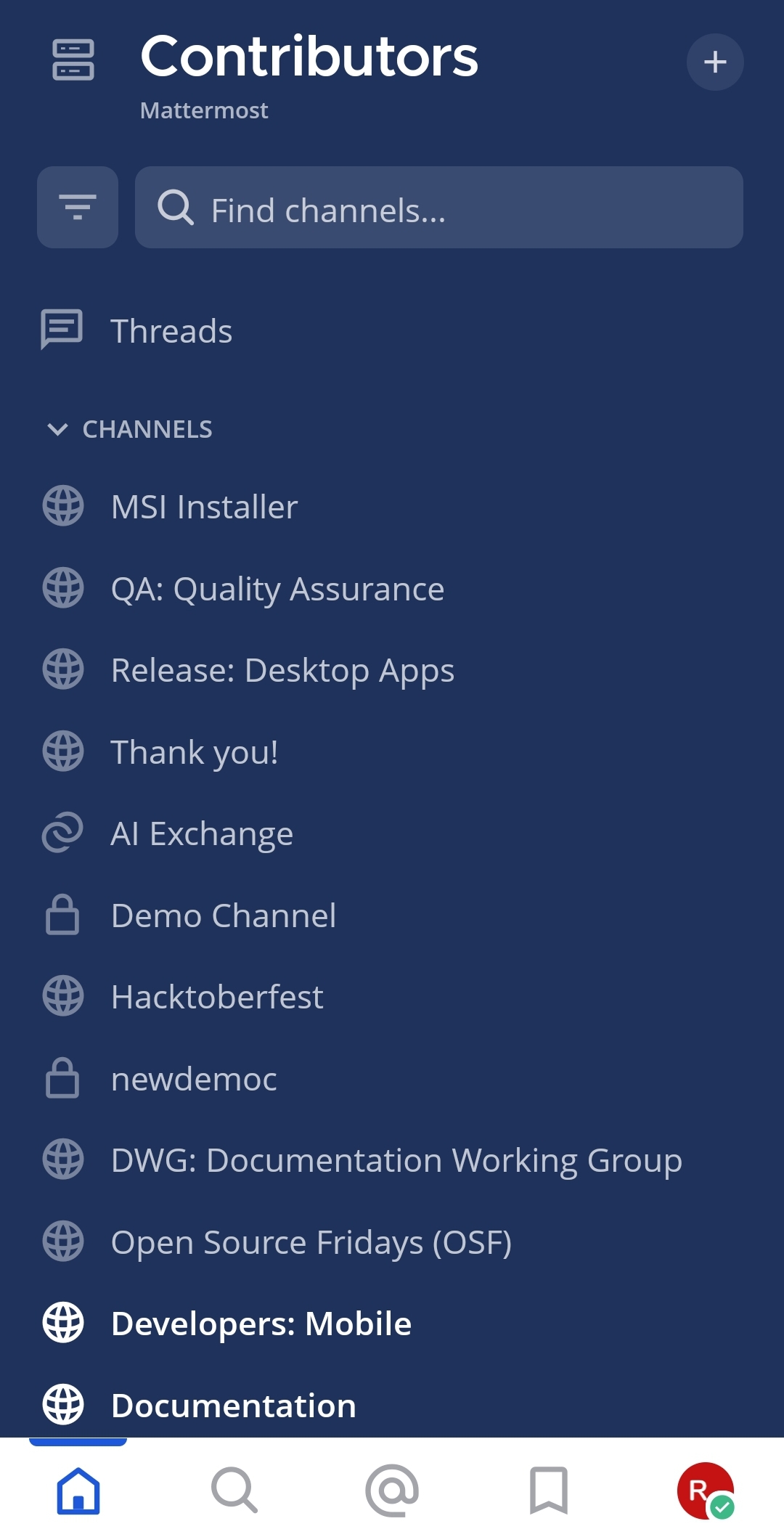
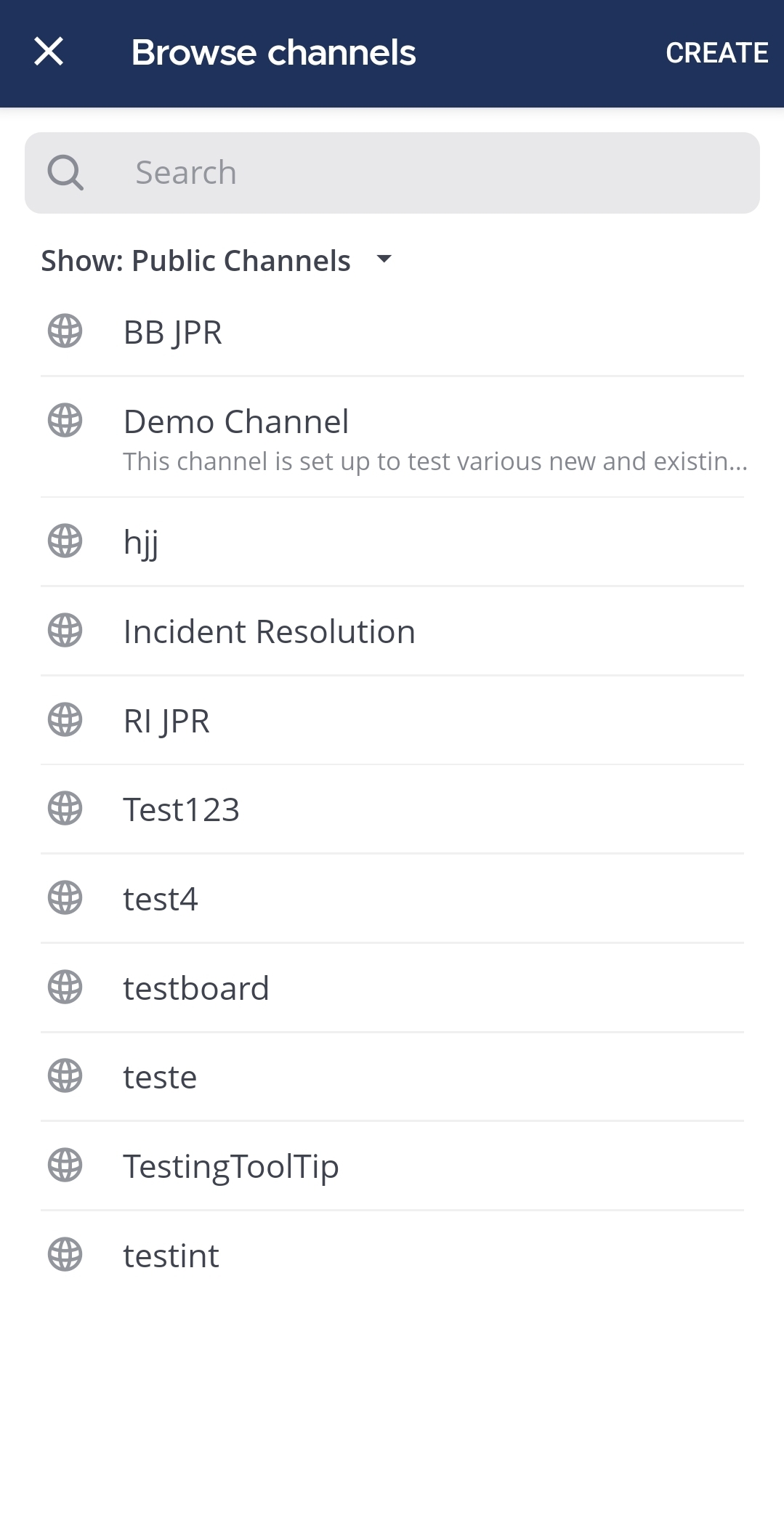
- Tap Browse Channels.
- Tap the public channel you want to join.
See the following documentation to learn more about working with channels:
Leave a channel
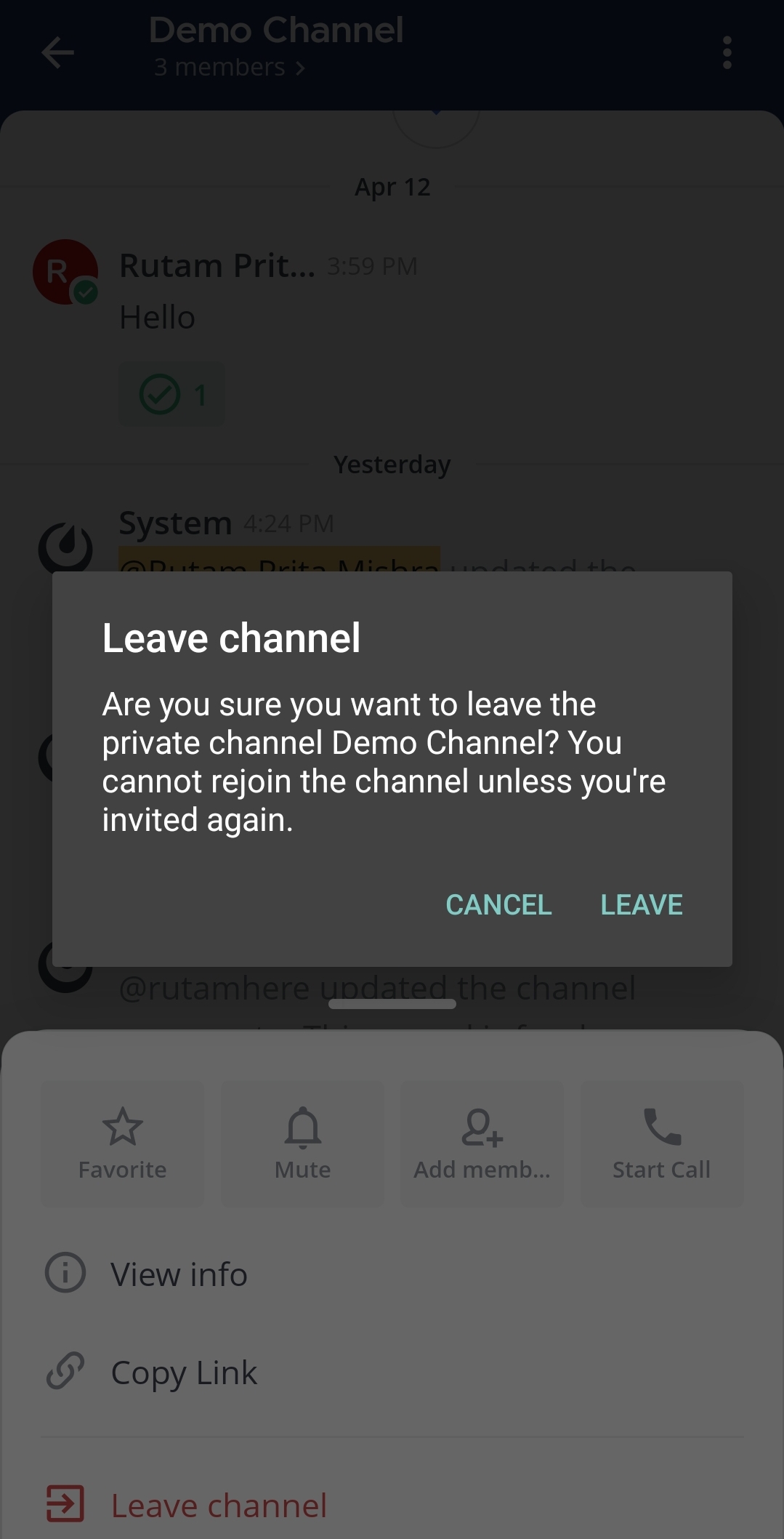
When you leave a private channel, you must be re-added by another channel member to rejoin. You won't receive mention notifications from a channel if you're not a member of that channel.
- Web/Desktop
- Mobile
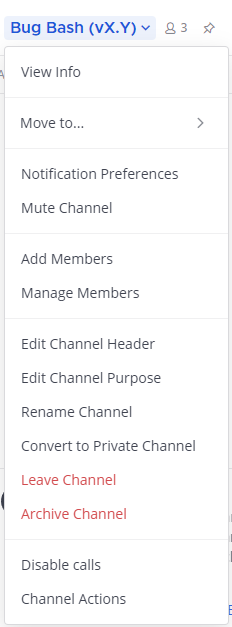
Select the channel name at the top of the center pane to access the drop-down menu, then select Leave Channel.
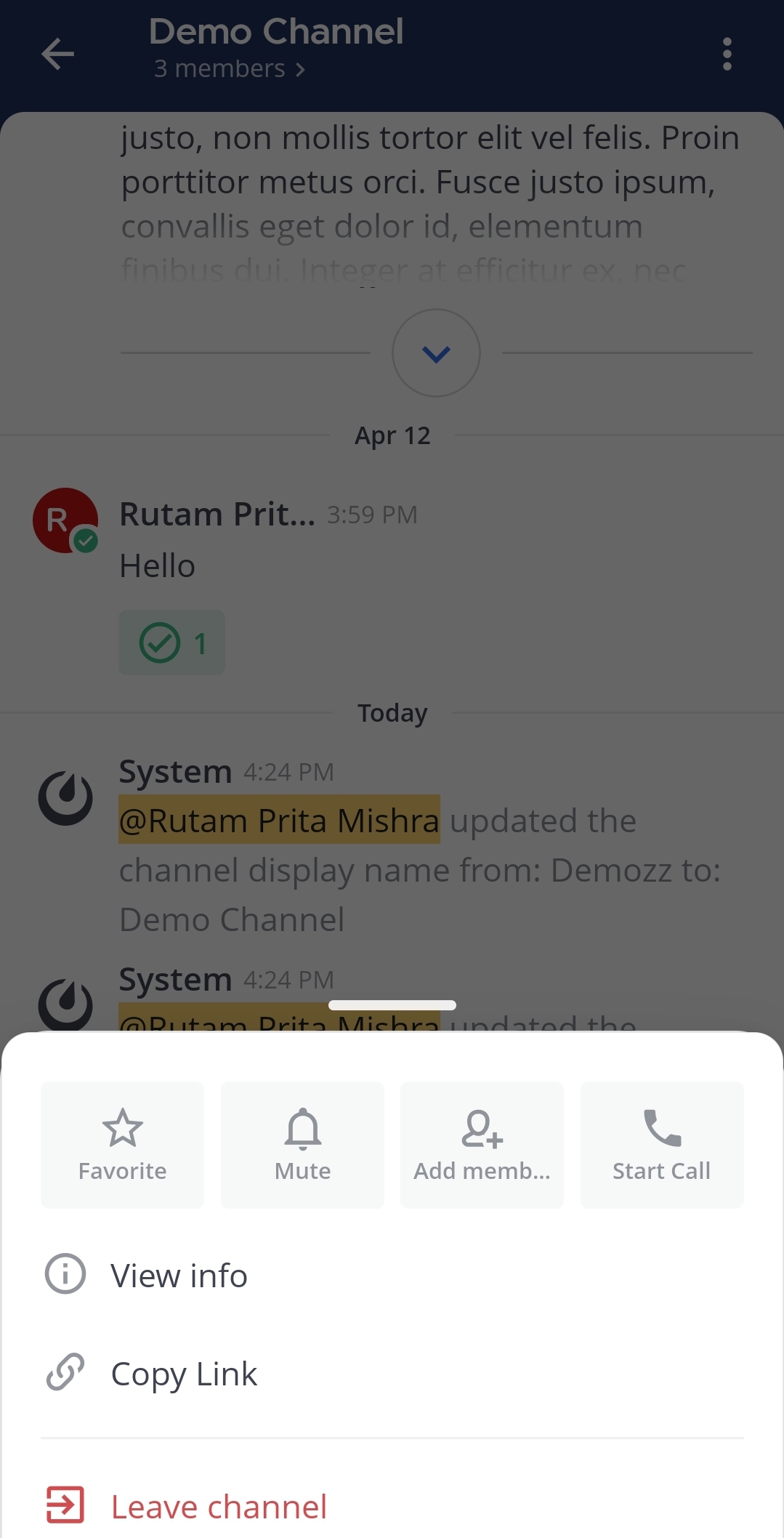
- Tap the channel you want to leave.
- Tap the More
 icon located in the top right corner of the app.
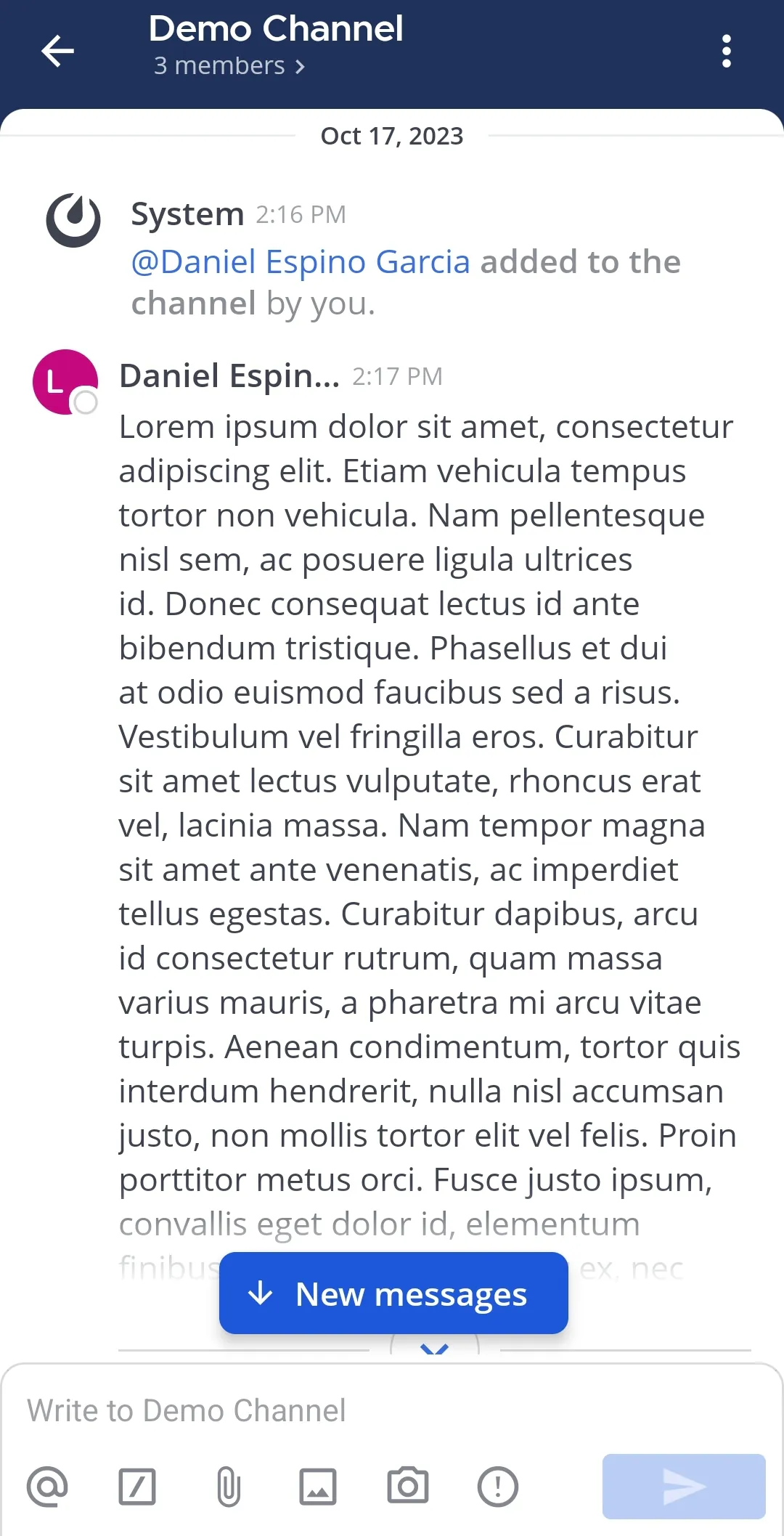
- Tap Leave channel.
- Tap on Leave to confirm you choice.
Leave a public channel added by a membership policy
From Mattermost v11.8.0, when you leave a public channel you were added to by a membership policy, Mattermost asks you to confirm:
- Choosing Leave channel removes you from the channel.
- Choosing Mute instead keeps you in the channel and mutes its notifications.
If the channel is already muted, Mattermost shows Cancel and Leave channel instead of Mute instead.
Hide join and leave messages in a channel
From Mattermost v12.0, you can hide the system messages that display when users join, leave, are added to, or are removed from a public or private channel. This is useful in busy channels where frequent membership changes add noise.
By default, any channel member can change this setting, just like the channel name and header. System admins can restrict who can change it using the Manage Channel Settings permission in the System Console. See the advanced permissions documentation for details.
Unlike the Enable Join/Leave Messages setting, which each user sets for themselves across all channels, this setting applies to a single channel and hides these messages for all channel members, regardless of their own preferences.
- Open the channel using a web browser or the desktop app.
- Select the channel name at the top of the center pane to access the drop-down menu, then select Channel Settings.
- Select Configuration, then disable the Join/Leave System Messages option.
- Select Save to apply the changes.
Mattermost continues to store join and leave messages while they're hidden. Enable the Join/Leave System Messages option again to show all stored messages in the channel.